Friday, January 29, 2016

Why was I afraid of Google Classroom?

Screen Shot 2016-01-25 at 9.30.24 PM.pngGuest Blog Post
by Carmen Wright, Elkhorn Elementary

This whole “Google Classroom” talk among experts had made me feel uneasy. There were many podcast dedicated to this topic.  Many conferences have two or three sessions on Google Classroom.  It felt like everyone was using it but me.  I was a bit afraid to implement “Google Classroom” in my own classes. Why?  What’s the big deal you say? Or maybe you have not heard of Google Classroom.

What is Google Classroom and why should I care? In a nutshell, Google classroom is a web-based platform that allows the teacher to connect with their students in a straightforward manner. It gives teachers a simple way to create, collect, grade, and return assignments paperless using Google Apps. I’ll confess, I have attended several workshops on “Google Classroom” in the past, but as with many workshops the information does not always stick.


As one of my many New Year’s resolutions, I decided to try a few new activities in the classroom to shake things up. Google Classroom was at the top of my list. This whole “Google Drive this and that” platform does not come natural to me (yet). I sometimes can’t find documents in Google Drive (which I’m told I can not lose things in it) it's in there somewhere I'm informed by experienced Google people. Google Drive becomes fuzzy when I have to share documents with others and it becomes even more fuzzier when I have multiple Gmail accounts to manage. I think my documents know how to hide well from me.

Screen Shot 2016-01-25 at 8.33.05 PM.png
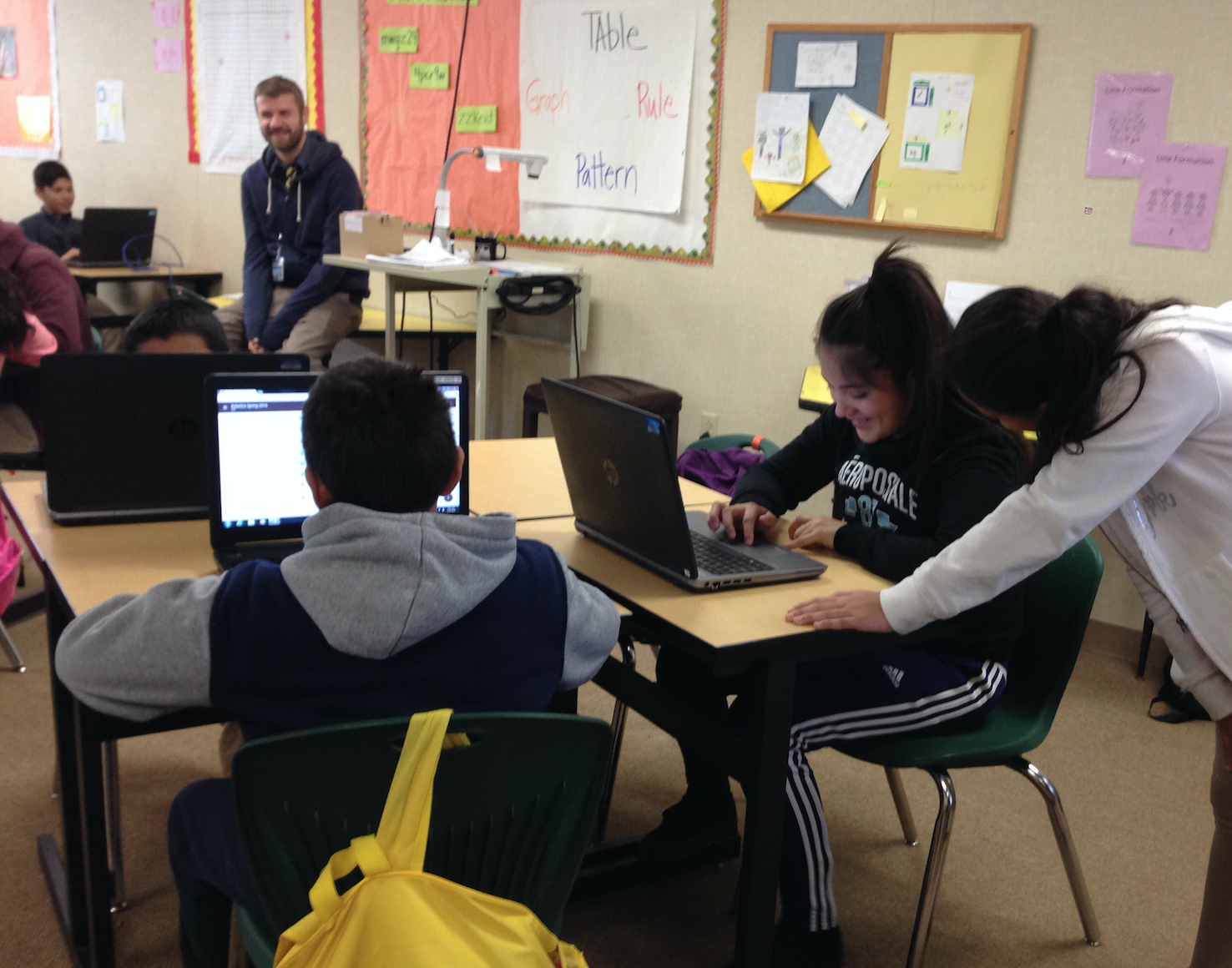
“The Google” world is still evolving for me. I admire those teachers who have taken the plunge and have successfully implemented Google Classroom. I, on the other hand needed extra help, and extra help showed up in the form of Edmund Lynch, WUSD Technology TOSA. Edmund helped me implement Google Classroom. He was calm and had a positive demeanor. Edmund stayed for almost two class periods. I was able to set up two classrooms that day, a Robotics Elective and a Math Lab. For my elective class, I shared with my students an activity that Melissa Oliver had taught in one of her many workshops, Google Maps. Student pinned their favorite city and country they would love to visit. All my students were very engaged with this activity. For my Math lab, I created a slide activity called “Math Gone Wrong”, where student would find the error and write a few sentence regarding it.


Screen Shot 2016-01-25 at 8.01.42 PM.png

Why was I afraid? Maybe because I don’t understand everything about Google Drive. Maybe part of me was afraid of losing the personal conversation I have with my students everyday. Will they all be so immersed with the devices that the human contact diminishes. The start of a New Year gave me new energy to realize that it’s okay, it’s another tool I could use in the classroom to assist my students in their learning. I understand that I don’t have to do it alone and I don’t have to do all of it at once. I'm feeling more comfortable using Google Classroom.  My classroom is not paperless but I have reduce the amount of paper I use to assign engaging activities.  I'm not an expert but I will suggest to others that it's okay you do not have to be afraid.

We have an awesome Tech Team here at WUSD. I would highly recommend Edmund to visit your classroom and demo or assist you with any technology schoolwork. The whole team Kim, Melissa, and Edmund are very approachable and are our biggest cheerleaders. They understand our hesitations but they also understand what future tools can be used in the classroom to help our students learn. They enjoy working with teachers and our students. It’s a win-win-win for our students in this district.

Wednesday, January 27, 2016

Google Play for Education. Part II

Monday's post, Google Play for Education Part I, provided background information on the Google Play for Education store. This post is designed to provide you step-by-step directions on accessing the Google Play for Education store and pushing out WUSD approved apps to your students on an individual, small group, or whole class basis.

How Teachers Can Access the Google Play for Education Store.

1. Visit play.google.com/edu-world. You will need to be logged into your WUSD Google Account to access the Google Play for Education Store. If you are logged in and still see an error message stating you need authorization to view, please send me an email so you can be granted access.

2. Find a App you want to learn more about. (3 methods)

  • Use the Search Bar
  • Search just Chrome Apps
  • Click on the name of the App

3. Review the app within the Google Play for Education Store to ensure it works on Chromebooks or Chrome desktop browser. GeoGebra is used as an example here.


4. Before you Install, teachers need to verify the app meets our student data privacy guidelines by visiting the WUSD Vetted Apps & Websites list. 

GeoGebra falls within the Approved column so now I'm ready to push out the app to my students. If your app doesn't appear on the list, please submit it for review. If your app falls into one of the other categories, you need to follow the directions outlined in the Technology Update 12/16/15 post before pushing it out to students.

5. Click install.


6. If installing a WUSD approved app for an individual or small group of students, type in their names or email addresses in the box and then click install. (For whole class, see step #7 to avoid typing in the names of all your students.)


7. To push out a WUSD approved app to your entire class, I recommend visiting Hapara (www.teacherdashboard.com) to obtain the emails of your students. You can copy (Control + C) the list from Hapara and paste (Control + V) them in the box shown above.

  • Visit www.teacherdashboard.com
  • Click on the class folder that you wish to push out the approved app
  • Click on Class Info Tab
  • Scroll down to the bottom of the page and locate Student Address List
  • Highlight List, Copy (Control+C) and Paste (Control+V) in

  • Click Install
Whatever method you choose to push out WUSD Approved Apps to your students, it is recommended that you do it 24 hours before you plan on using it with students to ensure delivery to everyone in advance of your lesson. The apps will appear in students app launcher when logged into their WUSD Google Accounts.

Remember, if you don't see an app on the list that you'd like to use in your class, please submit it for review.

Monday, January 25, 2016

Google Play for Education. Part I

Google Play for Education is an app store that is designed exclusively for teachers and educators. The Chrome Web Store is great but it is filled with content that may not be relevant for schools. The Google Play for Education store is different. Apps within this environment have already been vetted by educators for their educational purpose. The Play for Education stores allows teachers to push out apps individually, to small groups, or to their entire class.

What does this mean for WUSD Teachers?

The appearance of an app within the Google Play for Education Store does not mean it meets the student data privacy requirements as outlined by SOPIPA as outlined in the Technology Update 12/16/15.  Teachers will need to verify where the app falls within our approved categories-approved, conditionally approved with parent consent, conditionally approved with directory release, approved only for students over age 13, or not approved.

Next Steps.
Look for our Google Play for Education Part II blog post on Wednesday that will outline how to access the Google Play for Education Store, identify apps, ensure they meet student data privacy requirements, and push out to individuals, small groups, or whole class.


Thursday, January 21, 2016

Technology Update: Help Desk Ticket Reminders (1/21/16)

Greetings WUSD Staff,

As you launch into the new semester, just a quick reminder to utilize the Technology Department Help Desk Ticket system. Your reporting of technology issues through this system will help us best serve you and your students in 2016.

 Steps for creating a Help Desk Ticket: 

  1. On a networked computer, go to http://helpdesk.wusd.k12.ca.us/ 
  2. Enter your user name and password. These are the same credentials you use to log onto your computer. 
  3. Click on the New Incident button and add your information. 
  4. Priority levels: · 
    • High – Your class cannot function without immediate help - URGENT 
    • Medium – Your class can function, but you need the issue looked into in the next day or two - CRITICAL 
    • Low – Your class is functioning fine, however, you need someone to look at this issue within the next week – IMPORTANT 
    • Normal – Your class is functioning fine, however you have a non-urgent, non-critical issue that needs our attention - NORMAL 
  5. Categories:
      We’ve added two new categories to support the Math Pilot: 
      • Carnegie (for high school math teachers) and Other-Math Adoption 
      • Please report any technical issues you’re encountering as you begin the pilot through one of these categories. We are working directly with the publishers to remedy the issues that teachers and students are experiencing. 
    • Purchase Requests: Please let us order your equipment for you! This ensures that it will work on our network and provides you with the best pricing available. To order any equipment or software, we will need a budget code before processing. 
  6. Provide a description of the problem you are experiencing. Providing as much detail as possible will be very helpful. Details could include the location of the issue, a specific computer name/number, and what you were doing prior to having the issue. 
  7. Click Add Request and your ticket will enter the queue for the designated technician.
Student Password Resets
If a student needs a password reset, please call or email Christy Jourdan with the student’s first name, last name, and 5 digit lunch number. In most cases, we are able to accommodate this need in real time to best help you and your students! Christy’s email address is cjourdan@wusd.k12.ca.us and her phone extension is 1411.

We are here to serve you and your students, so please let us do so by using the Help Desk Ticket system!

Kim

Tuesday, January 19, 2016

Staff printing from Chromebooks

This post would not have been possible without the
help of RCHS Spanish Teacher Deborah Rodriguez.
Now that almost 100 teachers are using Chromebooks with your students (or will soon be), you may have noticed that you haven't quite gone paperless but definitely less paper. There are times when you still need a hard copy of that document you created on your Chromebook and would like to print. You used to have to login into a different device to print. Not anymore. Thanks to Deborah!!

Here's the steps to set up Cloud printing on your district-provided Chromebook. Note: The first step must be completed on a hard wired, networked teacher computer (not your Chromebook.)

  1. On your district provided, hard-wired, networked computer, open Chrome. Verify that you are signed into Chrome with your WUSD Account. (If you're not sure whether or not you are signed into Chrome, visit the Chrome Menu (hotdogs) > Settings. At the top of the page, you should see something like below. If not, click on the Sign In Button.)

  2. Go to Chrome Menu (Hotdogs) > Settings > Show Advanced Settings and Scroll down to Google Cloud Print > Click on Manage

  3. Under Classic Printers > Click Add Printer > Select SecurePrint-BW
  4. Go to your Chromebook and you will be able to print to SecurePrint-BW when on our network. After completing steps 1-3, I highly recommend signing out of your Chromebook and signing back in to ensure that these changes take effect.
Be sure to thank Deborah for this great tip! We are better together!!